

Guide + row checker · Sage 50 and order handling
Sage 50 sales order CSV import: what Sage accepts, and what it doesn't
On this page10 sections
Short answer: you can't. Sage's own knowledgebase article, What type of information can I import? (last modified 19 February 2025), says plainly that you can't import into the Sales Order module of Sage 50 Accounts. The same goes for quotations, purchase orders and the Invoices and credit module. Sage's suggestion is that a Sage partner may have a solution, listed on the Sage Marketplace.
What you can import is the data around an order: customer records, product records, stock transactions, and sales invoices and credits as audit trail transactions. So the real question for a wholesaler isn't "how do I import sales orders?" It's "where should the order live, and what does Sage 50 need to receive from it?" This guide answers that, and has a checker further down for one invoice row before you import it.
Which Sage 50 plan has sales orders at all?
Sage's UK product page for Sage 50 Accounts shows two plans when we checked it on 29 October 2026:
| Sage 50 Accounts Standard | Sage 50 Accounts Professional | |
|---|---|---|
| Invoices and quotes | Yes | Yes |
| Track and manage stock | Yes | Yes, plus advanced stock management |
| Create sales and purchase orders | Not listed | Yes |
| Sales and purchase orders that recur | Not listed | Yes |
| Individual pricing and discounts per contact | Not listed | Yes |
If you're on Standard, there is no sales order to import into, whatever the file looks like. You can raise quotes and invoices, and that's the route your orders take today. Forum posts and older books also mention editions such as Essentials, which the current UK page doesn't list. If you're on an older licence, check what you have in Help, then About, before planning anything around sales orders.
What Sage 50's import will take
The import lives under File, then Import. You pick what you're importing, choose CSV or Excel, and map each column to a Sage field (Sage's import walk-through marks compulsory fields with an asterisk). Here is what the "What can I import?" article says about the areas an order touches:
| Area | Import? | The catch Sage lists |
|---|---|---|
| Sales orders | No | "You can't import into the Sales order module" |
| Quotations | No | Same rule as sales orders |
| Invoices and credits module | No | Sales invoices (SI) and credits (SC) can go in as audit trail transactions instead |
| Audit trail transactions | Yes | Sales receipts and purchase payments can't be imported; import as payments on account and allocate by hand |
| Customer records | Yes | Delivery addresses can't be imported |
| Product records | Yes | Quantity in stock can't be imported; use an adjustment in (AI) |
| Stock transactions | Yes | Movements in and out can't be imported; use adjustments in and out |
| Price lists | Partly | Imported from inside the price list record |
Two things in that table catch wholesalers out. Delivery addresses don't come across with customer records, and most trade customers have more than one. And an invoice imported as an audit trail row is a ledger entry, not an invoice document: there's no layout, no product lines, and nothing your customer would recognise as their invoice.
Three ways orders reach Sage 50 today
Every set-up we see is one of these three, or a mix.
1. Key the order into Sage 50 Professional. Someone retypes each order from the email, phone call or rep's notes into the sales order screen. Nothing is imported, so none of the rules below apply. This works when orders are few and the person taking them is the person using Sage. It stops working when orders arrive in several places, or when the person keying them is also the person picking them.
2. Keep orders elsewhere, import invoices as SI rows. Orders live in a spreadsheet, a web shop or an order system. When goods leave, each invoice goes into Sage 50 as one audit trail row per nominal code. This works on Standard as well as Professional. The cost is that the invoice your customer receives comes from the other system, and receipts still need allocating by hand.
3. A connector writes into Sage 50. Sage's article points to partners on the Sage Marketplace for exactly this. An app or a built link takes the order where it arrives and creates what Sage needs, without a person in the middle. This is the route when you have volume, several order channels, or a need for the full invoice inside Sage.
If you're weighing route 2 against route 3, the deciding question is usually how many orders arrive somewhere other than Sage. Where most of them come in as emailed purchase orders, AI order processing can read them into an order for a person to approve before anything reaches Sage.
The SI row: what each column must hold
Route 2 lives or dies on this layout. Sage's article on audit trail transaction fields (21 March 2025) gives the fields in this order:
| # | Field | Rule from Sage |
|---|---|---|
| 1 | Type | Required. SI for a sales invoice, SC for a sales credit, SA for a payment on account |
| 2 | Account | Required. Up to 8 characters, and the customer must already exist in Sage |
| 3 | Nominal code | Required. Up to 8 characters, must already exist |
| 4 | Department | Optional. Whole number from 0 to 999 |
| 5 | Date | Optional, but blank means today's program date. DD/MM/YYYY |
| 6 | Reference | Optional. Up to 30 characters |
| 7 | Details | Optional. Up to 60 characters |
| 8 | Net | Required. Up to 8 digits and 2 decimal places |
| 9 | Tax code | Optional, but blank means T0. Range T0 to T99 |
| 10 | Tax | Optional. Blank means 0.00 |
| 11 | Exchange rate | Required. 1 for sterling |
Fields 12 onwards (extended reference, user name, project, cost code and others) are optional extras in the extended layout.
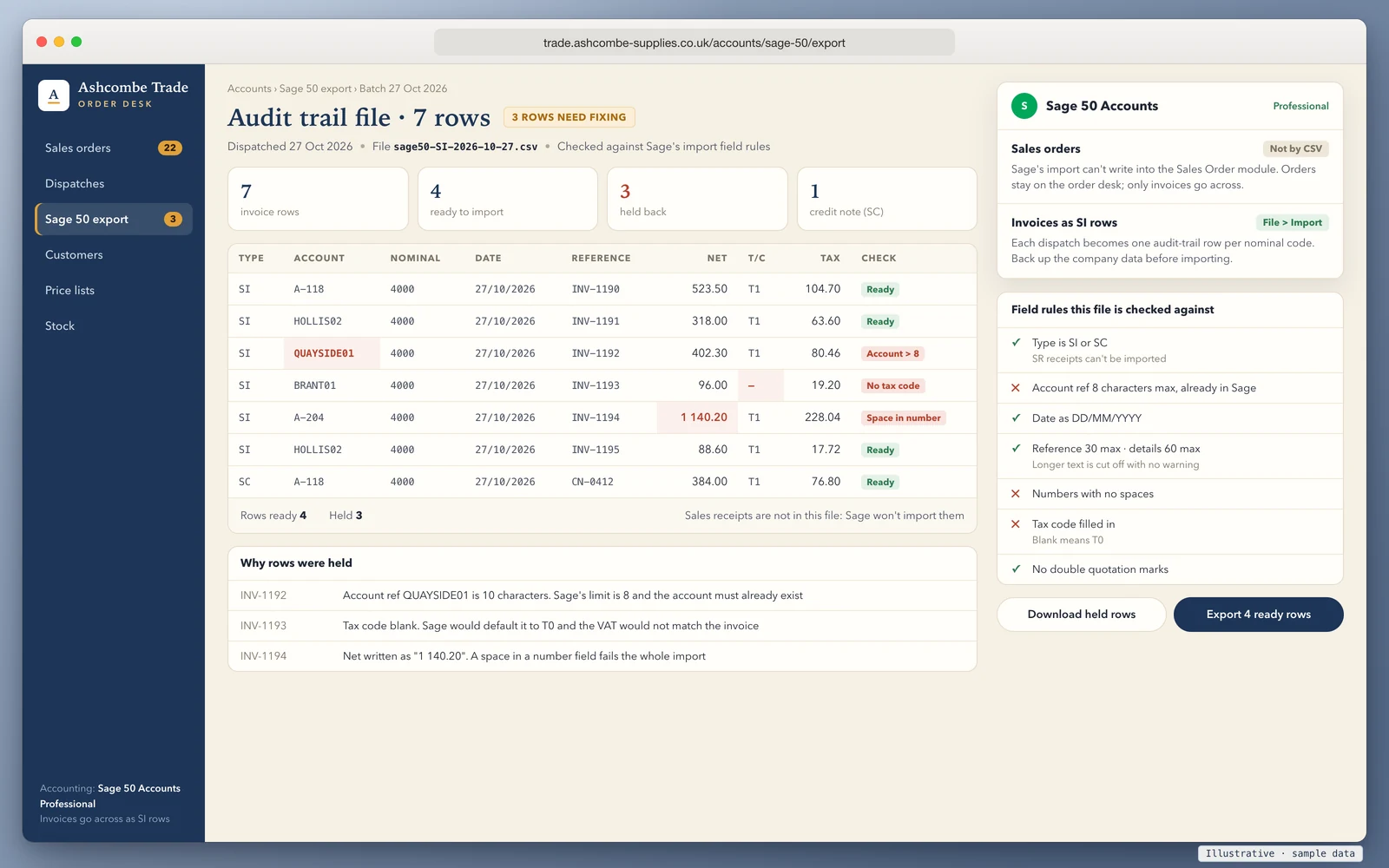
Look at rows 5 and 9. A missing date doesn't fail: it posts the invoice to the day you ran the import. A missing tax code doesn't fail either: it posts at T0 while the tax amount says something else. Neither is an error Sage will show you, so a checker has to catch them before the file goes in.
Where HMRC's rules come in
If you're VAT-registered, two HMRC rules decide how route 2 has to work.
The invoice data has to move by a digital link. Section 3.2.1 of VAT Notice 700/22, Making Tax Digital for VAT lists CSV import and export, and uploading and downloading files, as digital links. It also says HMRC doesn't treat "cut and paste" or "copy and paste" as one, and that transferring data between programs by hand isn't acceptable under Making Tax Digital. So if invoices are made in one system and your VAT return comes from Sage 50, an SI import file is a proper link between the two. Retyping the same invoices into Sage, or pasting them in, isn't.
The other system's invoices are VAT records. An SI row isn't the invoice your customer receives, so that invoice comes from wherever the order lives. Section 16 of VAT Notice 700 sets what a VAT invoice must show, and VAT Notice 700/21 says you must keep a copy of every VAT invoice you issue (paragraph 3.2), generally for at least 6 years (paragraph 2.4). The order system isn't something you can switch off once Sage has the ledger entry.
Check one row before you import it
Paste one line from your file below, in the order of the table above. The checker runs Sage's published field rules against it and tells you which ones it breaks. It can't see your Sage data, so it can't tell whether the account or nominal code exists. Nothing leaves your browser.
The checker's findings go into the message for you, not your row. Add your name and email, and we reply by email with the route we'd take. Nothing is sent until you press send.
The rejects and the silent errors
Sage's import file format rules (last modified 24 September 2025) split problems into two kinds. Some stop the import. Others let it through and change your data without telling you, which is worse.
These stop the import:
- A value of the wrong type for its field, such as letters in a number field.
- A space inside a number. Sage names the thousands separator written as a space, so "1 140.20" fails where "1140.20" goes through.
- Double quotation marks inside your data. Quotes are fine around a field to keep a comma in it, so an address can stay on one line. A quote inside the text can't be imported.
These go through and change your data:
- Text longer than the field limit is cut off, with no error message. A 40-character reference arrives as 30 characters. If your references carry the order number at the end, that's the part that goes.
- A single space between two commas clears the field. Two commas with nothing between them leave existing data alone, which is how you update only some fields. A stray space, often left by a spreadsheet formula, wipes what was there.
- A blank tax code becomes T0, and a blank date becomes today. Both come from the defaults in the field table above.
The fix for the first group is a cleaner file. The fix for the second is a check before import, because after it you're searching the audit trail for entries that look perfectly normal.
Before your first import
- Back up the company data, and note which backup it is. Sage's recovery article (17 April 2026) has you restore a backup, delete incorrect transactions and re-import the audit trail, so a known-good starting point saves hours.
- Import customers before invoices. An SI row fails if its account doesn't exist yet, and delivery addresses still need adding by hand afterwards.
- Import a file of two rows first. Check both in the audit trail: date, tax code, reference and amount. Then import the rest.
- Keep receipts out of the invoice file. They go in as SA rows, and someone allocates them.
- Decide where the invoice document comes from. An SI row is a ledger entry, so the invoice your customer sees has to be produced somewhere else. That's often the point where route 2 stops being cheaper than route 3.
If you also use Xero or QuickBooks somewhere in the business, the same order-before-invoice question is covered in does Xero have sales orders and does QuickBooks Online have sales orders. Price lists don't come across by import either, and the wholesale price list template guide covers the columns worth keeping in one place.
How we'd approach it
We build order systems that sit in front of accounting software and connect to Sage, Xero and QuickBooks through their official APIs. You own the code and the data, with CSV export at any time. A trade portal we built covers sales and warehousing and is used every day by a UK wholesaler. Orders come in through a B2B ordering portal or from emailed purchase orders, and Sage receives what it needs once goods have left.
It starts with a 20-minute walkthrough and a fit check of your products, customers, price lists and warehouses. After that we set up and import on a fixed plan and timeline, then train your team and stay close through the first weeks. You get a fixed quote after the walkthrough, with the full cost known before work starts and run costs listed separately. If keying orders into Sage 50 Professional is still the sensible answer at your volume, we'll say so.
Book a 20-minute walkthrough or send us one day's orders and the file you'd like Sage to take. We'll show you which route fits and what Sage would receive.
Sources
- Sage UK knowledgebase, What type of information can I import?: sales orders, quotations, purchase orders and the invoices module can't be imported; exceptions per area (last modified 19 February 2025, accessed 29 October 2026)
- Sage UK knowledgebase, Audit trail transactions data fields you can import: field order, types, lengths and defaults; SR and PP not importable (21 March 2025)
- Sage UK knowledgebase, Import file format rules: file types, quotes, blank fields, spaces, silent truncation (last modified 24 September 2025)
- Sage UK knowledgebase, Import your records: File, Import steps and field mapping (last modified 26 January 2026)
- Sage UK knowledgebase, Restore to an error free backup and reprocess (last modified 17 April 2026)
- Sage UK, Sage 50 Accounts: Standard and Professional plan features (accessed 29 October 2026)
- Sage, Sage Marketplace UK
- HMRC, VAT Notice 700/22: Making Tax Digital for VAT, paragraph 3.2.1 (updated 1 April 2022)
- HMRC, Record keeping for VAT (VAT Notice 700/21), paragraphs 2.4 and 3.2 (updated 18 March 2024)
- HMRC, VAT guide (VAT Notice 700), section 16
Last reviewed 29 October 2026. Sage changes plans and import rules; check the pages above on the day you decide. This guide isn't tax or accounting advice.